Basic Excel, Excel
May 1, 2026
How to Trace Dependents in Excel & Audit Formulas with the Auditing Toolbar
Key Takeaways
- The Formula Auditing toolbar in Excel helps you visualize how cells, formulas and values are connected across your spreadsheet.
- Trace Dependents shows every formula that references a selected cell, so you know exactly what will be affected if you change a value.
- Trace Precedents reveals all the input cells feeding into a formula, making it easy to verify calculations.
- Combining these tools with Show Formulas and Error Checking gives you a complete audit of any workbook, no matter how complex.
What Is Formula Auditing in Excel?
The formula function in Excel is one of the most useful things any business owner or employee can use, especially when large volumes of data need to be evaluated. Sometimes you are given completed worksheets that you need to do extra analysis on, and it can be difficult to see where all of the functions in the file are and where they are coming from. That is where formula auditing comes in.
Formula auditing in Excel is the process of tracing and verifying the relationships between cells, formulas and values in a spreadsheet. Whether you have inherited a complex workbook from a colleague or you are building out a large financial model, knowing how to do formula auditing in Excel helps you catch errors before they cascade, confirm that calculations are pulling the right inputs and make changes with confidence.
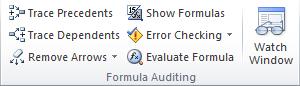
Excel's Formula Auditing group includes several tools designed for this purpose:
- Trace Precedents — shows which cells feed into a formula
- Trace Dependents — shows which formulas rely on a selected cell
- Show Formulas — displays all formulas in the worksheet at once
- Error Checking — scans for formula errors across the workbook
- Evaluate Formula — steps through a formula one calculation at a time
- Watch Window — monitors specific cell values in a floating panel
The table below provides a quick reference for each tool:
| Tool | What It Does | When to Use It |
|---|---|---|
| Trace Precedents | Highlights all cells that feed into a selected formula | Verifying a formula's inputs are correct |
| Trace Dependents | Highlights all formulas that reference a selected cell | Checking what will break before editing or deleting a value |
| Show Formulas | Displays formulas instead of values across the entire sheet | Reviewing all formulas at a glance |
| Error Checking | Scans the workbook for formula errors | Auditing large, multi-tab spreadsheets for hidden errors |
| Evaluate Formula | Steps through a formula one piece at a time | Debugging complex or nested formulas |
| Watch Window | Monitors selected cell values in a floating panel | Tracking key totals across multiple sheets |
Where to Find the Formula Auditing Toolbar
To access the formula auditing toolbar, click on the Formulas tab in the Excel ribbon. You will see a section labeled Formula Auditing that contains all of the tools listed above. You may have to customize the ribbon to see this option. Once you have located the group, you are ready to start auditing your formulas.
How to Trace Precedents in Excel
Trace Precedents shows you all of the cells used to calculate a certain cell's value. When active, you see a blue box around the cells and an arrow showing the direction of information flow.
To use this function, click on the cell that has the formula in it and hit the Trace Precedents button. All of the cells used in the formula of that cell will be outlined in blue. You can use the Remove Arrows button in this same section to get rid of the blue arrows.
If there are no trace precedents, then you will receive an error message from Excel.

How to Trace Dependents in Excel
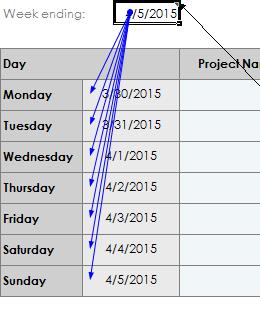
This function allows you to see all of the formulas that a particular cell is used in. For example, if you have a value that is used in multiple formulas in your spreadsheet, you can click on that cell, hit the Trace Dependents button, and all of the formula cells where that value is used will show up in blue with arrows pointing from that cell to the formulas that it is used in. You can use the Remove Arrows button in this same section to get rid of the blue arrows.
How to Use Show Formulas in Excel
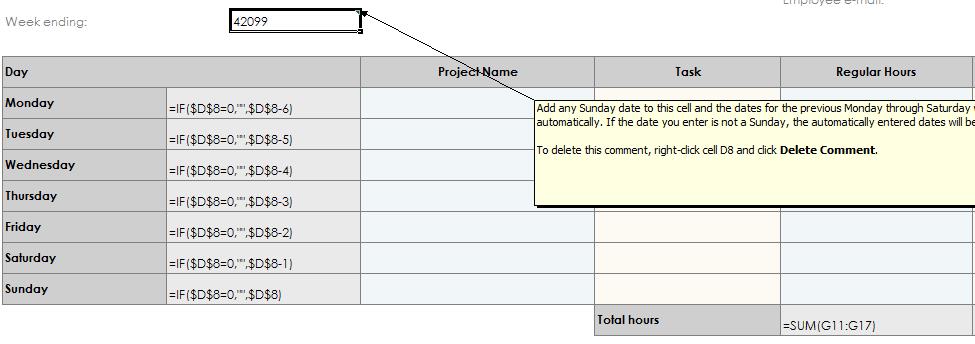
This function is very useful when you want to see which cells are formula driven, as well as when you want to do a thorough review of all of your formulas at a glance. Instead of selecting each individual cell and looking at the function bar, all you have to do is click on the Show Formulas button in the Formula Auditing section and all of the cell formulas appear instead of their values.
How to Use Error Checking in Excel
Error checking is useful if you have an extremely large spreadsheet with multiple tabs and you are not sure if all of the formulas are pulling through to the end correctly. By clicking on the Error Checking button, you can trigger Excel to look at all formulas and show any errors that need to be debugged.
Best Practices for Formula Auditing in Excel
Now that you know how to use each tool, here are some best practices to make your formula auditing workflow more efficient:
- Audit formulas before making any changes to an inherited workbook. Running Trace Dependents and Trace Precedents first helps you understand the spreadsheet's structure before you risk breaking something.
- Always use Trace Dependents before deleting or modifying a cell's value. This ensures you know every formula that relies on that cell.
- Combine Show Formulas with Trace Precedents for a comprehensive review. Show Formulas lets you see every calculation at a glance, and Trace Precedents confirms each formula's inputs. You can also use conditional formatting to visually flag cells that meet specific criteria, adding another layer to your audit.
- Run Error Checking on each tab of multi-sheet workbooks. Errors on one sheet can cascade to others, so a tab-by-tab review catches problems early.
- Remove trace arrows when you are finished auditing to keep your view clean and avoid confusion for other users.
- Use the Evaluate Formula tool on the Formulas tab to step through complex or nested calculations one piece at a time. This is especially helpful when a formula returns an unexpected result.
Strengthen Your Excel Skills with Pryor Learning
Formula auditing is extremely useful when you are given a spreadsheet with large amounts of important data, and mastering these tools is a must for anyone who works in Excel regularly. Pryor Learning offers live and On-Demand Excel training that covers formula auditing, data analysis and much more.