Basic Excel, Excel
May 1, 2026
How to Use the Excel COUNT Function (With Examples)
Key Takeaways
- The COUNT function in Excel counts only cells containing numeric values in a given range, ignoring blank cells, text and errors.
- Excel offers five counting functions (COUNT, COUNTA, COUNTBLANK, COUNTIF and COUNTIFS), each designed for a different scenario.
- Use COUNTIF or COUNTIFS when you need to count cells that meet specific criteria, such as values above a threshold.
- All five functions are demonstrated below with the same dataset so you can see exactly how each one behaves.
What Is the Excel COUNT Function?
Are you trying to count values in your worksheet and don't understand why the result is too high? Or are you looking for a method that excludes blank cells? Maybe you want to count only values which are greater than 1,000.
The COUNT function in Excel counts the number of cells in a range that contain numeric values. It is the most commonly used of Excel's counting functions and the foundation for understanding the rest. The COUNT formula in Excel uses the following syntax:
=COUNT(value1, [value2], ...)
- value1 (required): The first cell reference, range or value you want to count.
- value2 (optional): Additional ranges or values to include. COUNT accepts up to 255 arguments.
COUNT counts numbers, including dates (Excel stores dates as numbers). It ignores text, blank cells and error values. Excel gives you the power to count only the values that meet your criteria with five different count functions. So when do you use each one?
When to Use Each COUNT Function
The table below compares all five Excel counting functions side by side so you can quickly identify which one fits your situation.
| Function | What It Counts | What It Ignores | Example Use Case |
|---|---|---|---|
| COUNT | Cells with numeric values | Blanks, text, errors | Counting how many months have sales figures |
| COUNTA | All non-blank cells (numbers, text, errors) | Blank cells only | Counting how many rows have any data entered |
| COUNTBLANK | Empty cells only | Cells with any content | Checking a dataset for missing entries |
| COUNTIF | Cells meeting a single condition | Cells that fail the condition | Counting sales above a specific dollar amount |
| COUNTIFS | Cells meeting multiple conditions | Cells that fail any condition | Counting regions with high sales and high volume |
The guide below walks through each function using the same metro-area sales dataset so you can see exactly how the results differ.
How to Use the COUNT Function
The COUNT function is the most basic of the five, and it's the one you'll call on most often. Use it to count the numeric values in a range. COUNT ignores blank cells, cells containing text and cells containing errors. Because dates are stored as numbers in Excel, COUNT includes them in its result. The function accepts up to 255 arguments, so you can reference multiple ranges in a single formula.
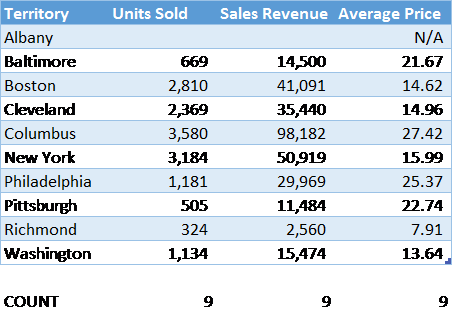
In this example, the report includes ten metropolitan areas, though Albany has no sales. Because it has no sales, Albany's Average Price is undefined. The COUNT function finds nine numeric values in each column, skipping the blank cells for Albany's Units Sold and Sales Revenue and ignoring the text "N/A" for Albany's Average Price.
How to Use the COUNTA Function
The COUNTA function is nearly identical to COUNT, but it picks up all values, including cells that contain text or error messages. Like COUNT, COUNTA ignores blank cells.
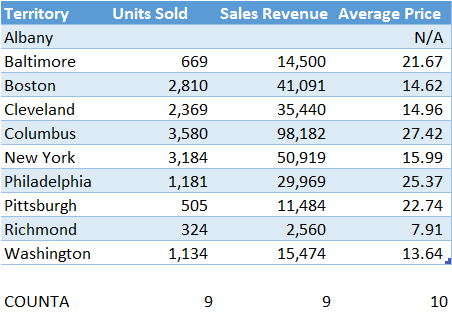
Like COUNT, COUNTA returns 9 for Units Sold and Sales Revenue because it ignores the blank cells for Albany. However, Albany's Average Price is not blank, so COUNTA includes the text value "N/A" in its result. Note that a single space (" ") or an empty text string ("") are not blank, so COUNTA will include them.
How to Use the COUNTBLANK Function
The complement of COUNTA, COUNTBLANK returns the number of cells which contain nothing at all—no numbers, no text and no error messages.
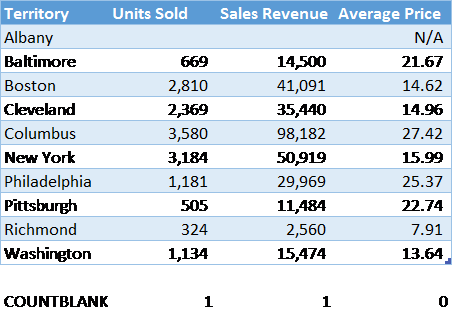
In this example, the only two cells empty of data are Albany's Units Sold and Sales Revenue. The COUNTBLANK finds both. On the other hand, every cell has an entry for Average Price, so COUNTBLANK returns 0.
COUNTBLANK is especially useful to test a dataset which should contain values in every cell, a dataset in which a blank cell might indicate an error. If COUNTBLANK returns any value greater than 0, this would be a signal to double-check the data for accuracy—and conditional formatting can help you spot those gaps visually.
How to Use the COUNTIF Function
More complex than other variations of COUNT, COUNTIF returns the number of cells that meet a certain condition. The function takes two parameters:
- The range to count; and
- The condition which each value must meet if it is to be counted.
When using comparison operators in the criteria parameter, you must enclose them in quotation marks (e.g., ">20").
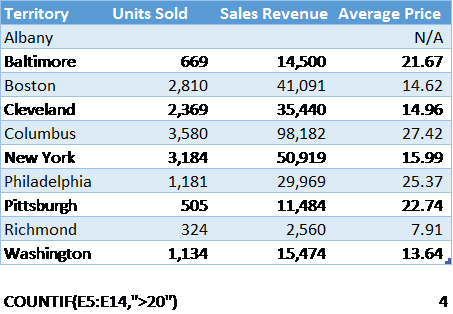
In this example, the formula says to count the Average Price values (E5:E14), but only those which are greater than 20. It finds four: Baltimore, Columbus, Philadelphia, and Pittsburgh.
How to Use the COUNTIFS Function
Finally, COUNTIFS is identical to COUNTIF except that it can test for more than one condition. It takes any number of parameters:
- The first range to test;
- The condition which each value in the first range must meet if it is to be counted;
- The second range to test;
- The condition which each value in the second range must meet if it is to be counted;
- The third range to test;
- The condition . . .
And so on.
Note that all ranges in COUNTIFS must be the same size. If they are not, Excel will return a #VALUE! error.
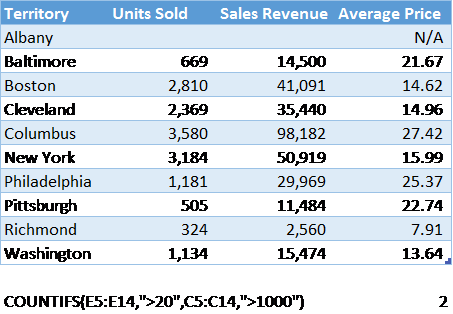
This example tests for two conditions: Average Price (E5:E14) must be greater than 20, and Units Sold (C5:C14) must be greater than 1,000. The function finds only Columbus and Philadelphia that pass both tests.
This function is especially useful to find averages or other ratios that exceed a certain threshold, excluding those with only a few values to avoid skewing the ratios with statistically insignificant data.
Troubleshooting Common COUNT Errors
If your COUNT formula is returning unexpected results, check for these common issues:
- Numbers stored as text. If you imported values from another system or pasted them with formatting, they may look like numbers but are actually text. COUNT will skip them. Select the cells, look for a green triangle in the corner and use the warning icon to convert them to numbers.
- Mismatched range sizes in COUNTIFS. Every range you pass to COUNTIFS must have the same number of rows and columns. If they don't match, Excel returns a #VALUE! error. Double-check that each range argument covers the same number of cells.
- Hidden spaces or characters. A cell that appears empty may contain a space or non-printing character. Because it is not truly blank, COUNT and COUNTA will treat it differently than you expect. Use =LEN() on the cell to check for hidden characters.
- Using COUNT when you need COUNTA. If your range contains text values you want included in the total, COUNT will ignore them. Switch to COUNTA to pick up all non-blank cells regardless of data type.
- Forgetting quotation marks around criteria. In COUNTIF and COUNTIFS, you must wrap comparison operators like > or < in quotation marks (e.g., ">20"). Without them, Excel will return an error or an incorrect result.
Related Excel Functions
Do you need even more powerful counting and summarizing capabilities? Try combining the COUNT functions above with these related Excel formulas:
- SUMIF — Adds up values in a range that meet a single condition. Pairs well with COUNTIF to get both a count and a total.
- AVERAGEIF — Returns the average of cells that meet a specified condition, saving you from dividing SUMIF by COUNTIF manually.
- SUMPRODUCT — Multiplies corresponding values across arrays and returns the sum. Useful for weighted counts, Excel finance formulas and multi-condition calculations that go beyond COUNTIFS.
- LEN — Returns the number of characters in a cell. Helpful for diagnosing hidden spaces or characters that cause unexpected COUNT results.
- AGGREGATE — Performs 19 different functions (including COUNT) while letting you ignore error values or hidden rows, making it ideal for filtered datasets. It is covered in most advanced Excel training programs.