Excel
May 12, 2026
How to Use Excel Goal Seek for What-if Analysis
Key Takeaways
- Excel Goal Seek is a built-in what-if analysis tool that reverse-solves a formula by adjusting a single input value to reach a target result.
- To use Goal Seek, you need a cell with a formula (Set cell), a target value (To value) and one variable cell to adjust (By changing cell).
- Goal Seek works with one variable only. For multiple variables and constraints, use the Solver add-in.
- If Goal Seek is not working, check that your Set cell contains a formula, verify there are no circular references and adjust iteration settings if needed.
Ever find yourself wondering if Excel could help you answer the question: "What values would I need to get a known result?" The what-if analysis features in Excel give you the tools to do just that. Unlike functions and formulas that take given values and return a result, what-if scenarios allow you to explore the results of multiple variables, and Goal Seek lets you specify the result and then determines the values needed to generate it.
What Is Goal Seek in Excel?
Goal Seek is one of three what-if analysis tools built into Excel, alongside Scenario Manager and Data Tables. It is useful when you know the answer you want from a formula but aren't sure what input value is needed to get that result. Rather than manually guessing and plugging in numbers, Goal Seek automates the process by iterating through possible input values until the formula cell reaches your target.
When you open the Goal Seek dialog box, you work with three fields:
- Set cell: The cell containing the formula you want to solve. Goal Seek adjusts the input until this cell reaches your target.
- To value: The specific result you want the formula to return.
- By changing cell: The single input cell that Goal Seek will adjust. This cell must be referenced by the formula in your Set cell and must not contain a formula itself.
You can learn about What-if Scenarios here. In the What-if Scenarios article, we looked at how to compare the monthly payment and total interest for loans at different interest rates and terms. But what if, instead, you knew how much you wanted to pay per month and needed to know how long it would take you to pay off the loan? Goal Seek is your solution. To follow along using our example, download ExcelGoalSeek.xlsx.
When to Use Goal Seek
Goal Seek is the right tool whenever you have a formula-driven result in mind and need to find the single input that produces it. Common real-world scenarios include:
- Loan payments: Determining the loan term needed to hit a target monthly payment, as in our example below.
- Break-even analysis: Finding the number of units you need to sell to cover your costs.
- Target grades: Calculating the exam score required to achieve a desired final grade.
- Pricing decisions: Setting a product price to reach a specific profit goal.
- Sales targets: Identifying the revenue figure needed to meet a quarterly budget.
Because Goal Seek handles only one variable at a time, it works best for straightforward problems. If you need to adjust multiple inputs or apply constraints, see the Solver section later in this article.
How to Use Goal Seek
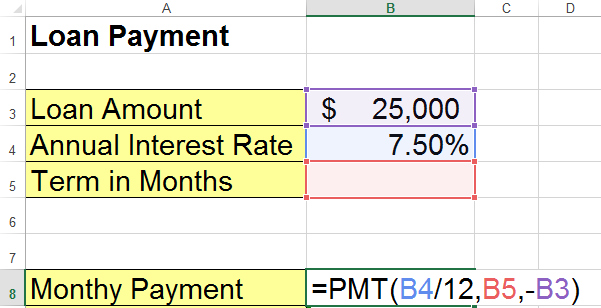
1) Set up your table to include all known data and the formulas needed to calculate the results. In our example, we use the PMT function in B8 to calculate the monthly payments based on our other known factors (Interest Rate and Loan Amount) and our unknown value (Term in Months). Enter any placeholder value in the unknown cell so you can test your formulas.
2) On the Data tab, select Goal Seek from the What-if Analysis dropdown menu.
3) In the Goal Seek dialog box, fill out the criteria for your search:
- Set cell: Select the cell that contains your results formula. (The cell must contain a formula for Goal Seek to work.)
- To value: Type the amount you want the formula to return. In this case, we want a monthly payment of $600.
- By changing cell: Select the cell of your unknown variable. (This cell must not contain a formula.)
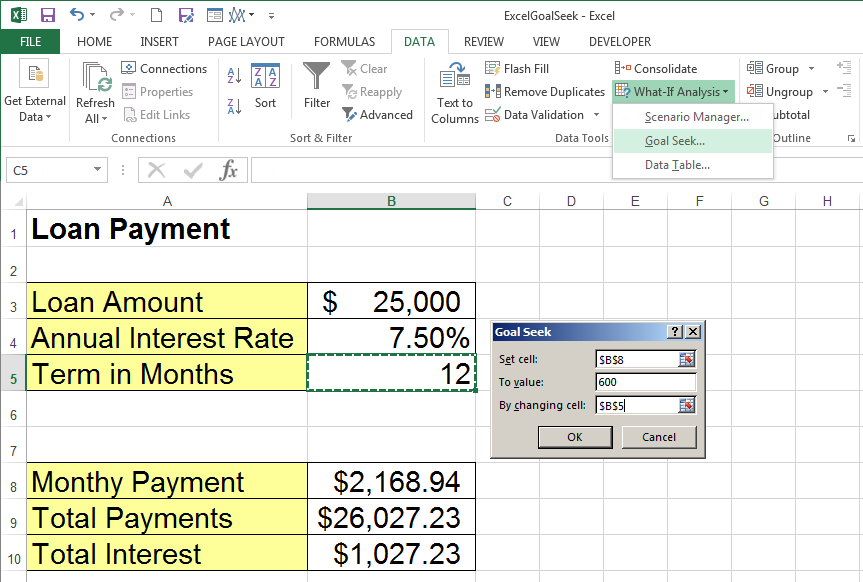
Note: In Excel 2016, What-if Analysis appears in the new Forecast Group.
4) Click OK. The Goal Seek Status dialog box will indicate that Excel is searching for a solution that meets your criteria. If it finds one, your table will be updated to show the solution.
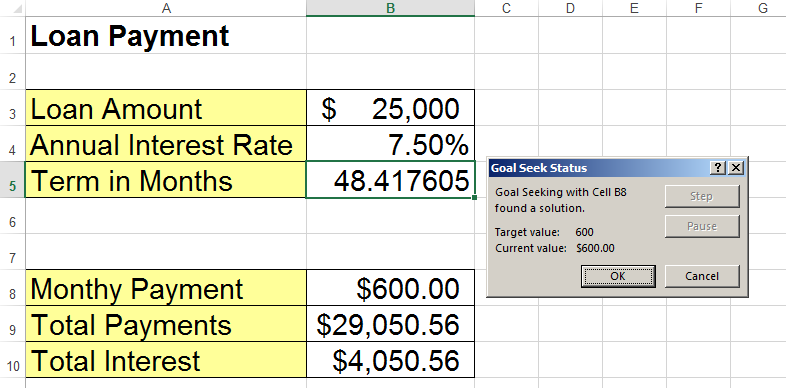
Notice that the result may not be an even number like you might want in this case. It is also possible that Excel is unable to find a result if the criteria is not solvable. Even so, Goal Seek is a useful tool for "working backwards" to figure out values in a complicated equation without having to "guess and try again".
Excel Goal Seek Not Working: Troubleshooting Tips
If Goal Seek returns an error or fails to find a solution, work through these common fixes before assuming the problem is unsolvable.
1. Double-Check Your Goal Seek Parameters
The most frequent cause of failure is an incorrect setup. Make sure the Set cell contains a formula, not a static value. The By changing cell must be a single cell that is directly or indirectly referenced by that formula. If either field points to the wrong cell, Goal Seek cannot iterate toward a solution.
2. Adjust Iteration Settings
Excel limits how many times Goal Seek can try new values before stopping. If the tool stops short of a solution, increase the limit by going to File > Options > Formulas. Enable iterative calculation, set Maximum Iterations to 1,000 or higher and reduce Maximum Change for greater precision. These adjustments give Goal Seek more room to converge on your target.
3. Remove Circular References
Goal Seek cannot solve formulas in a worksheet that contains circular references. Check for circular reference warnings in the status bar or under Formulas > Error Checking. Resolve any circular references before running Goal Seek again.
4. Verify the Problem Is Solvable
Some target values are mathematically impossible given the formula and its constraints. For example, no positive loan term will produce a $0 monthly payment on a loan with a positive balance and interest rate. If you suspect this is the issue, try a less aggressive target value to confirm that Goal Seek can find a solution in the valid range.
Goal Seek vs. Solver and Other What-if Analysis Tools
Goal Seek will only work with one result and one variable. If you need to explore multiple outcomes or optimize across several inputs, Excel offers additional what-if analysis tools. The table below summarizes how they compare.
| Tool | Number of Variables | Output Type | Complexity Level | Best Use Case |
|---|---|---|---|---|
| Goal Seek | One | Single target value | Low | Reverse-solving a formula for one unknown input |
| Scenario Manager | Multiple (up to 32) | Side-by-side scenario comparison | Medium | Comparing named sets of assumptions (e.g., best case vs. worst case) |
| Data Tables | One or two | Table of results | Medium | Seeing how changes in one or two inputs affect a formula across a range |
| Solver | Multiple | Optimized result with constraints | High | Finding the best outcome when multiple variables and constraints apply |
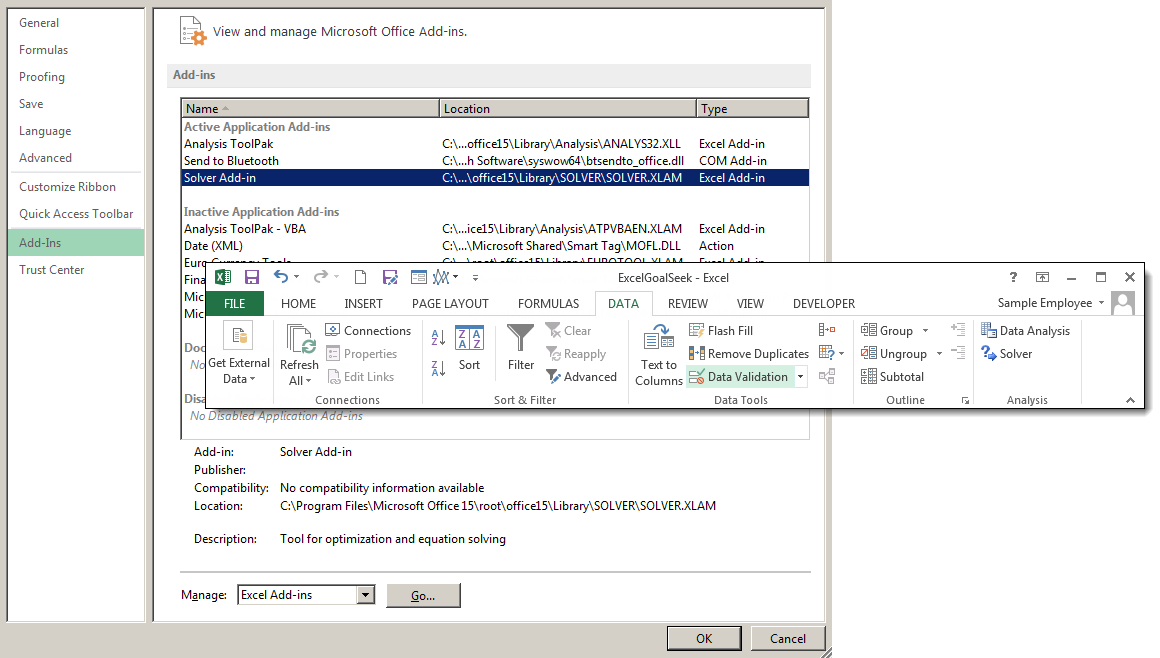
If you wish to find a specific answer with multiple variables and constraints, you will have to use the Solver add-in. To access Solver, go to the Options window from the File tab. Click Add-Ins. Select Solver Add-in in the Add-ins pane, then click OK.
The Solver feature will now appear in the Data tab.